
Paint
Screenshots

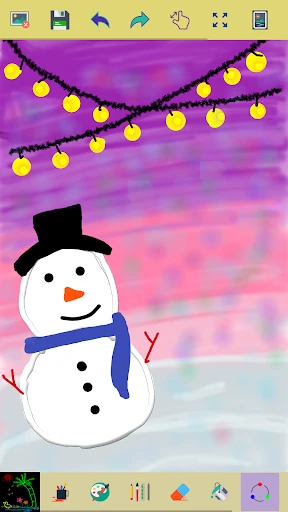


Description
About Paint Feature - A Lightweight and Versatile Digital Canvas
Paint is a classic, user-friendly digital painting and image editing application. Originally a staple component of the Microsoft Windows operating system, it has evolved into a standalone and accessible app available on various platforms. Its enduring appeal lies in its straightforward interface that provides essential tools for creating simple drawings, making quick image edits, and annotating pictures. Designed for users of all skill levels, Paint eliminates the complexity of professional-grade software, offering an intuitive space for spontaneous creativity and basic graphic tasks. It serves as a versatile digital sketchpad, a handy editing utility, and a gateway into the world of digital art for beginners.
Chapter 1: Function
Paint offers a focused set of core functions centered on freeform creation and basic image manipulation. The primary toolset includes a brush, pencil, and airbrush for drawing freehand lines and shapes in various sizes and colors. Users can create precise geometric shapes like rectangles, circles, and polygons, which can be filled with solid colors or gradients. The app provides essential text insertion capabilities, allowing for labels and annotations. For image editing, it includes functions to crop, resize, rotate, and flip images. The color palette enables selection from a standard set or custom color creation via an eye-dropper tool. The eraser tool removes parts of the drawing, while the selection tools (rectangular and free-form) allow users to cut, copy, and move specific areas. File support typically includes common formats like PNG, JPEG, and BMP for saving and opening work. These combined functions make it a practical toolkit for on-the-fly graphic creation and modification.
Chapter 2: Value
The fundamental value of Paint lies in its accessibility, simplicity, and speed. It delivers immediate utility without a learning curve, making digital creation and editing possible for anyone. Its key advantage is the low barrier to entry; it requires no prior training or subscription, often coming pre-installed or available as a free download. This democratizes basic graphic tasks, empowering students, professionals, and casual users to express ideas visually. Compared to complex software like Adobe Photoshop, Paint excels in quick, lightweight tasks. It opens instantly, uses minimal system resources, and its interface is uncluttered, focusing on doing a few things well. For brainstorming, creating simple diagrams, adding quick marks to screenshots, or letting children explore digital art, Paint is exceptionally efficient. It fosters creativity by removing technical intimidation, allowing the user's idea to take center stage. Furthermore, its universal familiarity and support for standard image formats ensure seamless integration into workflows, whether for saving a quick sketch, preparing an image for a document, or creating a straightforward meme. In an era of software overload, Paint's enduring value is its focused, no-frills approach to solving everyday graphic needs reliably and instantly.
Chapter 3: Scenarios
Paint's primary user groups encompass individuals requiring straightforward, non-professional graphic tools. First, it is ideal for students and educators for creating visual aids, simple project diagrams, flowcharts, or annotating images for presentations and reports. Second, office workers and professionals frequently use it for quick tasks like cropping screenshots, highlighting areas in an image, adding text boxes to photos for documentation, or creating basic logos and banners for internal communications. Third, it serves as a perfect introductory tool for children and budding digital artists to learn fundamental concepts like shapes, colors, and composition in a pressure-free environment. Finally, casual users and seniors appreciate it for personal projects such as editing family photos (red-eye removal, cropping), designing custom greeting cards, or creating fun digital doodles. Everyday use cases include preparing an image for a social media post, sketching a room layout idea, creating a simple party invitation, or marking up a map with directions. In all these scenarios, Paint provides a fast, readily available solution that fulfills the need without requiring investment in time or money to master advanced software.
Uninstall Instructions
For step-by-step guidance on how to safely remove this application from your device, please refer to our 《Uninstall Instructions》 document.
Pros
- live collaborative canvas with infinite zoom for brainstorming
- exports vector graphics without quality loss for professional use
- minimalist toolbar reduces clutter during creative flow
- real-time cursor tracking for seamless team coordination
- offline mode with automatic cloud sync upon reconnection
Cons
- steep learning curve for advanced vector editing features
- requires stable internet for full collaborative functionality
- limited text formatting options within diagram annotations
- high-resolution exports slow on older mobile devices
- no built-in template library for common diagram types
Frequently Asked Questions
What is Paint and what does it do?
Paint is a digital painting and drawing application designed for creative expression. Its core function is to provide a realistic canvas simulation with tools like brushes, pencils, and layers. It is positioned as an accessible art studio for sketching, painting, and creating digital artwork. Unique features often include customizable brush engines, layer blending modes, and support for various stylus pressure sensitivity. Basic usage involves selecting tools and colors to draw directly on the device screen.
Is Paint free to use or does it have in-app purchases?
The specific pricing model for this app named 'Paint' is not provided in the available information. Typically, apps in this category may be offered as a one-time purchase, a free app with premium feature unlocks, or a subscription. For accurate details on costs, free trials, or in-app purchases, please check the official description on your device's app store (Google Play Store or Apple App Store) as policies can vary.
What devices and systems is Paint compatible with?
Technical characteristics and adaptation scope are not detailed in the provided attributes. Generally, a digital painting app like Paint would require compatibility with specific operating systems (e.g., iOS, Android, Windows) and may offer optimized support for devices with stylus input (like tablets). For precise information on supported device models, OS version requirements, and whether it adapts to different user groups (beginners vs. professionals), refer to the app's official system requirements listed on its download page.
How does Paint handle layer functionality and brush customization?
As a core feature of digital art apps, Paint typically offers layer-based editing, allowing users to separate elements of their artwork for non-destructive changes. Brush customization is a key technical characteristic, often providing controls over size, opacity, flow, and texture to mimic real media. The unique positioning may involve advanced engines for realistic brush strokes. For the exact capabilities, number of layers supported, and specific customization options in this particular 'Paint' app, consult its in-app tutorial or official feature list.
Can I export my artwork in high resolution from Paint?
A common usage concern for painting apps is export quality. While specific export formats and resolutions for this 'Paint' app are not stated here, such applications usually support exporting finished work in standard image formats (like PNG or JPEG) and often at the canvas's native resolution. Some may support PSD or other professional formats for editing elsewhere. For definitive information on export options, DPI settings, and any potential limitations, please review the app's help documentation or settings menu.
App Info
Technical Info
Recommended For You

Handshake Jobs & New Careers
Business
WhatColors: AI Color Analysis
Beauty

UPS
Business

Lezhin Comics -การ์ตูนและนิยาย
Comics

NIV Bible version, Offline app
Books & Reference

Marathon ARCO Rewards
Auto & Vehicles

AGE-R medicube Digital clinic
Beauty

Photo App - AI Photo Enhancer
Art & Design

Beauty Plus Princess Camera
Beauty

밀리의 서재 - 독서와 무제한 친해지리
Books & Reference
CL Theme Card
Auto & Vehicles

Firefox Focus: No Fuss Browser
Communication

Adblock Browser: Fast & Secure
Communication

DreamPic - AI Image Generator
Art & Design

clickworker
Business

Tor Browser
Communication

Android Auto
Auto & Vehicles

ThriftBooks: New & Used Books
Books & Reference

OBDocker - OBD2 Car Scanner
Auto & Vehicles

Cars.com: Buy and sell cars
Auto & Vehicles